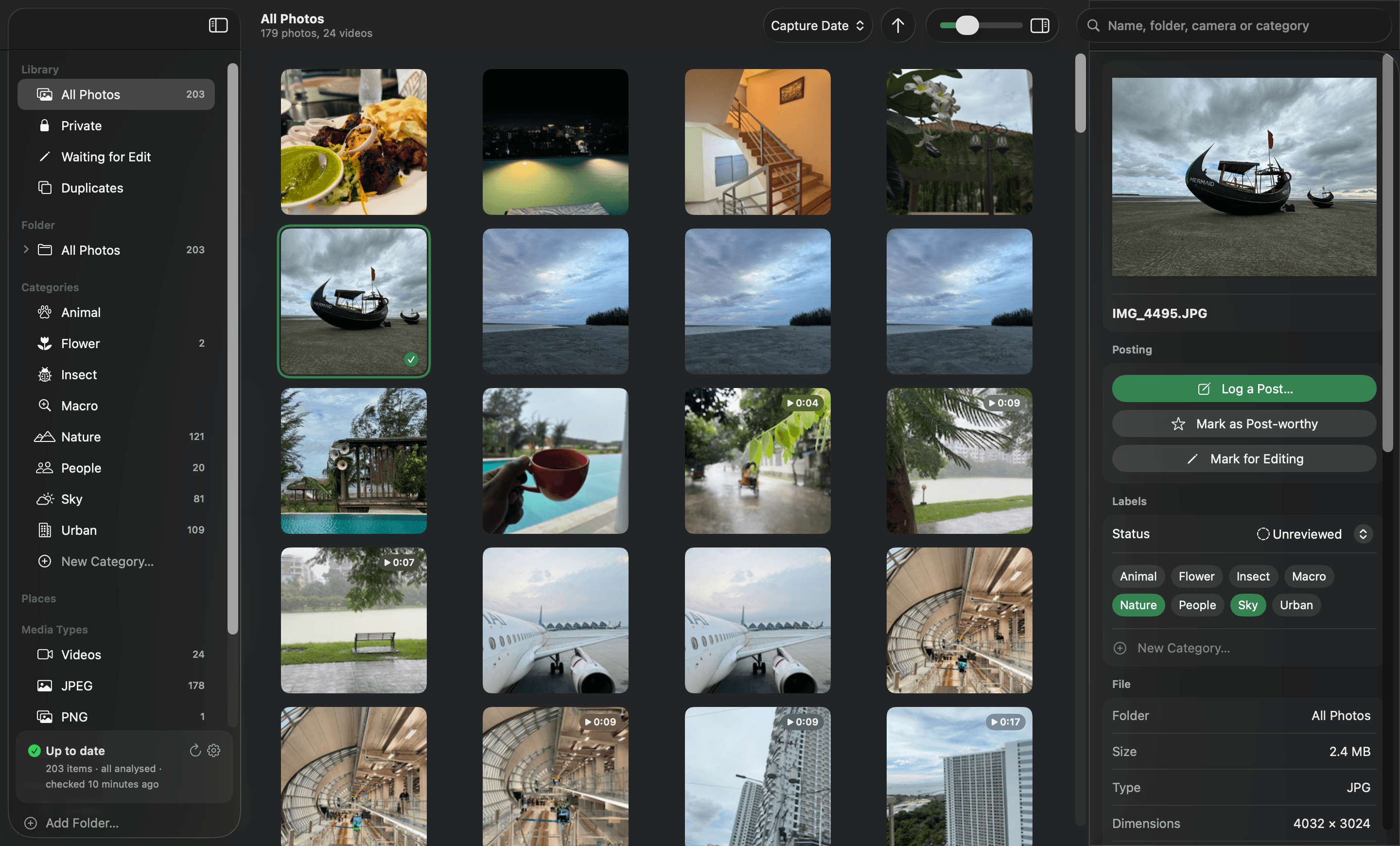
“I have five years of photos — macro, nature, people, private ones. The folders are a mess, and out of thousands I don’t know which I’ve already posted and which I should post next.”
Import walls.Many photo libraries make you import everything before you can even look — and your photos end up inside someone else’s library.
Names that mean nothing.IMG_4821.CR3, DSC_0012.NEF, a hundred folders called New Folder.
No memory of what you posted.It lives in your head and in your Instagram grid, not next to your files.
Privacy worries.AI tools that want your whole library uploaded to the cloud.
Sortroom’s answer: Open what you have, organize it for real, remember everything — and keep it private.
Four promises.
No import. Ever.
Add a folder or plug in a drive — your photos show up right away, right where they are.
Your files are sacred.
Sortroom never re-saves or re-compresses a photo. It only renames or moves — after you approve — and every change can be undone.
Know what to post next.
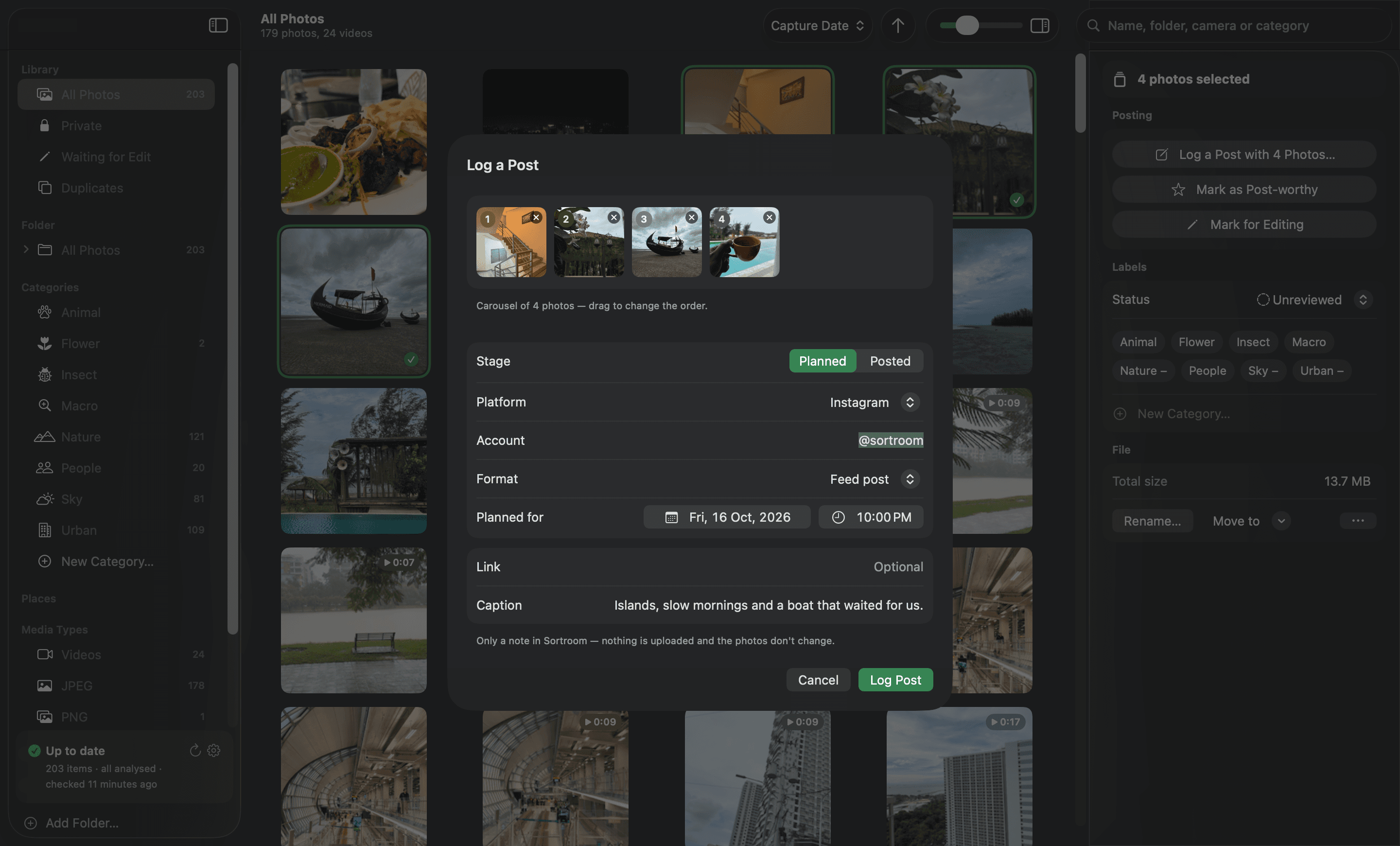
Mark shots post-worthy, planned or posted, and always know what’s left to share.
Private by design.
AI runs on your Mac by default. Private photos and folders are never shown to any AI.
Your own places
Name a place once. Every photo follows.
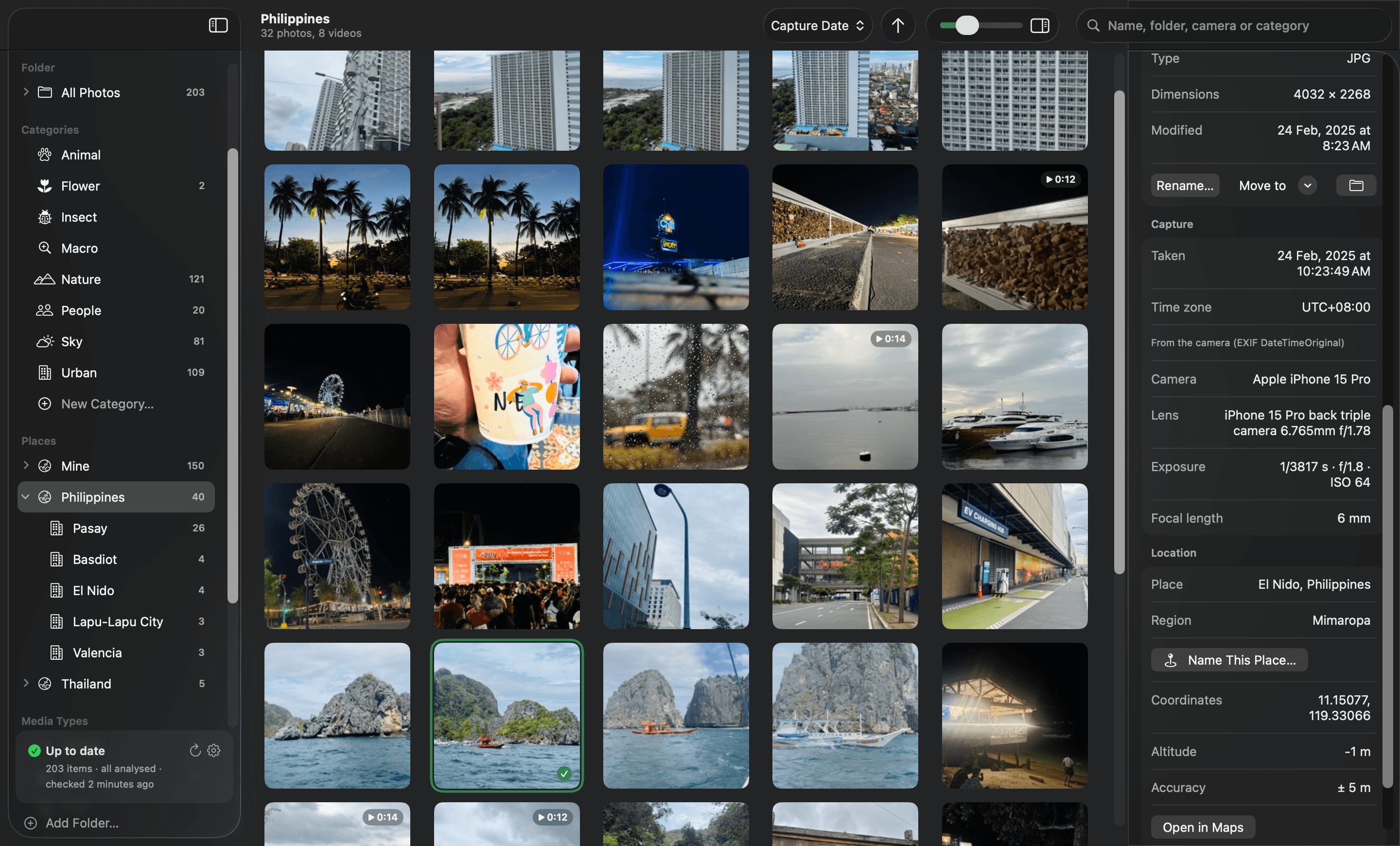
Pick any photo and choose Name This Place. Call it “Office”, “Home” or “Grandma’s”, and set how far it reaches — from a single building (50 m) to a whole neighbourhood (3 km). That’s it: every photo taken inside that circle is labeled with the place — years of old photos, and every new one you add.
Places sit inside each other: “My Office” inside “Mirpur DOHS” inside Dhaka
One click in the sidebar shows every photo from that place; search finds it; file names can use it (Office_2026-10-09.jpg)
GPS drifts a little indoors, so shots from the same desk still land in the same place
Your place names stay on your Mac — or in your own iCloud if you turn on sync
Works for photos with location (GPS) — most phone photos have it.
In practiceEvery macro shot from your rooftop garden, grouped under “Rooftop” — without tagging a single photo.
Works with Claude
Sort it yourself — or just ask Claude.
Connect Claude Desktop in one click and ask in plain words: “Rename this week’s shoot by date and place”, “Mark the best sunset photos as post-worthy”, “Put every flower shot in a Flowers folder”. Claude proposes a plan, Sortroom shows you every change, and nothing happens until you click Apply. Everything can be undone.
1You ask Claude
2Claude proposes a plan
3Sortroom shows it to you
4Nothing moves until you click Apply
Private photos and folders are invisible to Claude
Claude sees small previews only if you switch that on
Claude gets city and country only — never your exact location (GPS)
Part of Sortroom Pro
In practiceBack from a weekend shoot with 400 files called IMG_… — one sentence to Claude, one look at the plan, Apply.
Made for making content
Gather your next post in seconds.
Sortroom groups similar shots on your Mac — sky, flowers, animals, food, people and more — and every photo from one place, trip or day is one click away. Pick the best, mark them Post-worthy, and plan a carousel in the order you want, a reel, a story or a feed post.
In practiceSix sunsets from six months, side by side — your next carousel, picked in a minute.
Open everything, import nothing.
Your drive, instantly
Plug in your SSD, add a folder, start browsing.
Sortroom reads your folders where they live — on your Mac, a portable SSD or an external drive. Photos start appearing while the scan is still running, so you’re never staring at a progress bar.
JPEG, HEIC, PNG, TIFF, WebP and camera RAW (Canon, Nikon, Sony, Fujifilm, Olympus, Panasonic, DNG)
Every photo from every sub-folder in one view — or browse folder by folder
Nothing copied, nothing moved into a library
In practiceYou come home from a shoot, plug in the SSD, and your new photos are there — next to five years of old ones.
Drives come and go — your work stays
Unplug the drive; plug it back tomorrow; everything is exactly as you left it.
Your labels are saved on the drive, so they travel with it. Unplug it and Sortroom shows it as not connected — plug it in again and it’s back, labels and all.
In practiceTake the SSD from your home Mac to the office Mac — your labels are already there.
Your videos, right next to your photos
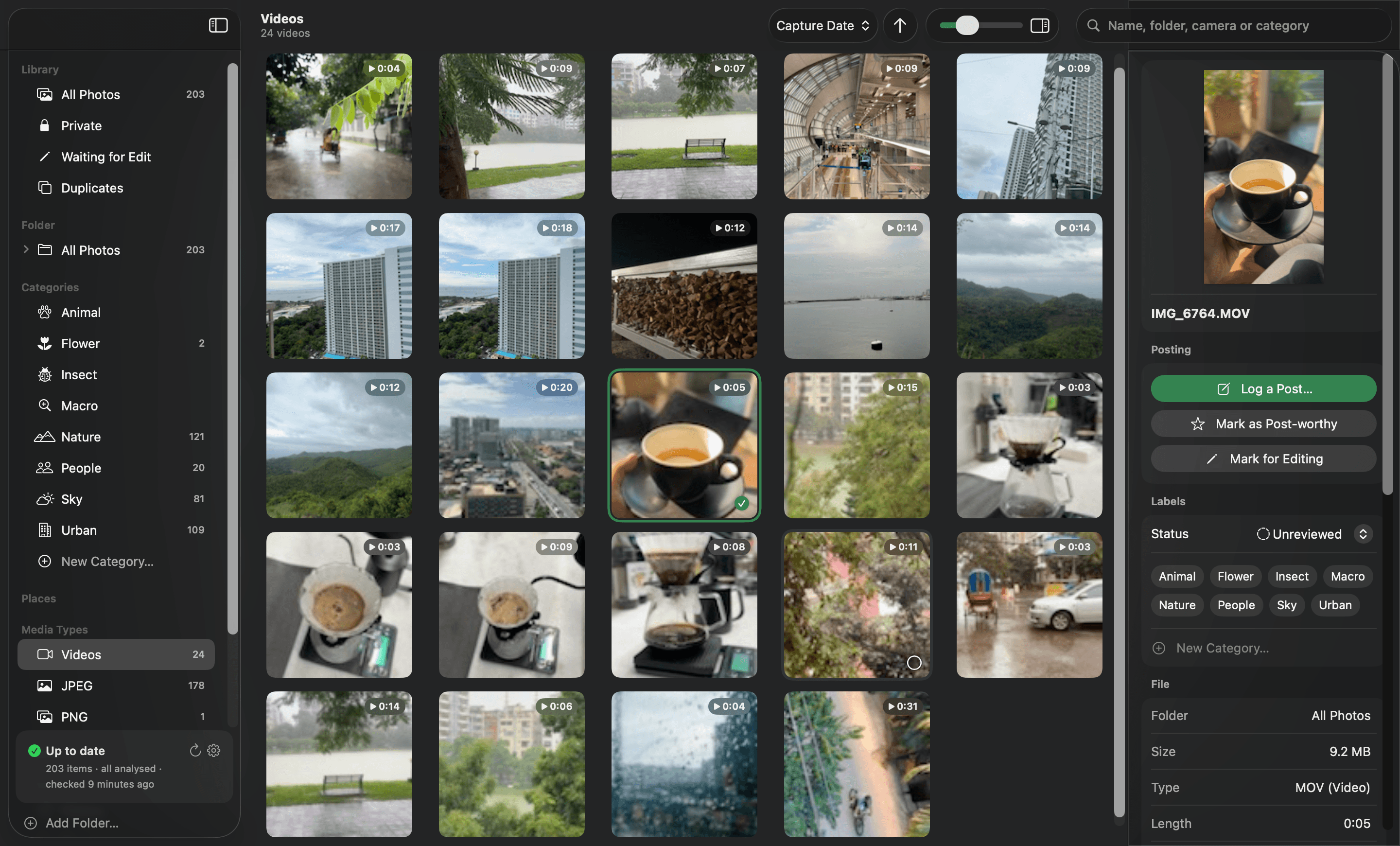
.MOV and .MP4 clips show up too — with their length, date and place.
Sortroom lists the videos in your folders alongside your photos, with the length on each thumbnail. Press Space to play one. Live Photos stay one item, just like in Photos — the motion part travels with its picture.
In practiceFind last week’s clips from the park without opening a single folder.
Every format, one click
See just your videos or RAW files — or just the JPEGs, HEICs or PNGs.
A Media Types list in the sidebar sorts your library by file format, with counts. Nothing is copied or moved; the lists fill themselves.
In practiceBefore a big edit session, open RAW to see only the files straight from your camera.
A folder tree that stays out of your way
Finder-style folders that open only where you’re working.
The sidebar shows your folders as a clean tree and expands only the path you’re in, so deep folder structures stay readable.
When a photo was really taken — in the time zone it was taken in.
Sortroom shows when each photo was really taken, in the time zone it was taken in. A sunset in Manila stays 6 pm — even if you’re looking at it in Dhaka. When the date is only a guess, Sortroom tells you it’s an estimate.
Sorts by the real moment, even across time zones
Shows where the time came from (“From the camera”, “Estimated”)
In practicePhotos from a trip across three countries finally sort in the order you took them.
Place names without the internet
Dhaka, Barishal, Manila — from your photo’s GPS, on your Mac.
Sortroom names the city and country of every photo right on your Mac — your location is never sent anywhere. Browse by country and city, search by place, and use places in file and folder names.
Rename any automatic place name (“Cox’s Bāzār” → “Cox’s Bazar”) — it changes everywhere
Organize into Country / City folders in one step
Can be switched off in Settings
In practice“Show me everything I shot in Sylhet” — one click in the sidebar.
Your own places
Name a place once — every photo taken there, old and new, is labeled with it.
Pick a photo and choose Name This Place. Sortroom draws a circle around it — from 50 m to 3 km — and every photo taken inside gets that name, including the ones you add later. Places nest naturally — “My Office” inside “Mirpur DOHS” inside Dhaka. See them in the sidebar, find them in search, use them in file names.
Smart about GPS drift, so shots from the same desk land in the same place
Your place names stay on your Mac — or in your own iCloud if you turn on sync
In practiceEvery macro shot from your rooftop garden, grouped under “Rooftop” — no tagging by hand.
A clear inspector
Camera, lens, date, place and labels — at a glance.
Label and track.
Post-worthy
Planned
Posted
Waiting for Edit
Edited
Private
Skipped
Gather your next post
All your sky, food or pet shots — or everything from one place or day — in one click.
Smart categories and your own places do the gathering; you pick the best, mark them Post-worthy and plan the post: a carousel in your order, a reel, a story or a feed post.
In practiceYour flower photography from the whole spring, ready for a carousel.
Know what you’ve posted
Unreviewed → Post-worthy → Planned → Posted — plus Skipped and Private.
Give every photo a status by hand, with keyboard shortcuts, or in bulk. Filter by status in the sidebar and see at a glance what’s ready to share and what’s already out there.
In practiceSunday planning: open Post-worthy, pick this week’s three, log them as Planned.
A log of every post
Where, when and how each photo went out — or when it will.
Select photos and press ⌘L: Instagram or Facebook (and more), feed, story or reel, the date, the account, a link and the caption. Several photos become a carousel in the order you choose. The photo shows Posted on its own, the sidebar splits Posted by platform, and Never posted shows what hasn’t been shared yet. Only a note in Sortroom — nothing is uploaded, the photos never change, and every change can be undone. Don’t post online? Turn posting off in Settings and it all stays out of the way.
In practiceYou posted three macro shots as a carousel this morning: select them, ⌘L, Log Post. Done.
Waiting for edit
Know which photos still need editing.
Press E on the shots you want to edit: they gather in Waiting for Edit. Edited them in Lightroom? Press E again to mark them edited. The photo files stay where they are — the list fills itself.
Categories that don’t move your files
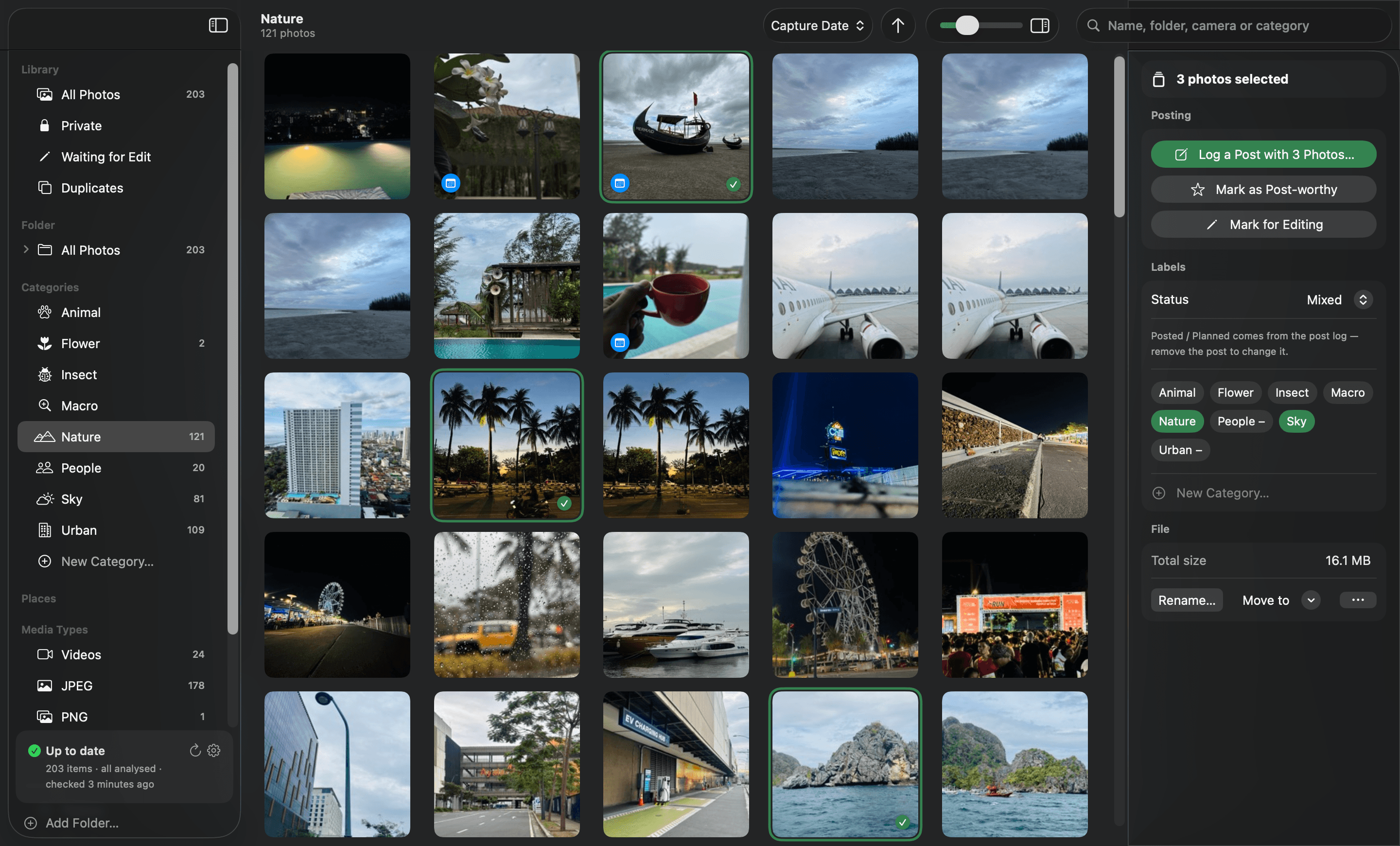
Flower, Macro, Sky, People — a photo can be all of them.
Categories are labels, not folders, so one photo can live in many. They’re saved on the drive, so they travel with it to any Mac. When you want real folders, one step turns a category into a folder.
In practiceTag a bee on a flower as Macro, Insect and Flower — it shows up in all three.
Smart categories
Make a “Coffee” category and watch it fill itself.
Name a category, tick what belongs — coffee, mug, bicycle, beach — and every photo your Mac already recognised joins it instantly. New photos join as they’re analysed. Take one out and it stays out.
Photo recognition runs on your Mac — nothing is uploaded
In practice31 coffee shots from two years of café visits, in one click.
Labels that follow your photos
Move, rename or copy a photo anywhere — its labels come back.
Move photos in Finder, copy them to another drive or rename them outside the app — the moment Sortroom sees them again, their status and categories return. Your newest change always wins.
In practiceYou reorganized a folder in Finder last month. Sortroom still knows which ones you posted.
Organize for real.
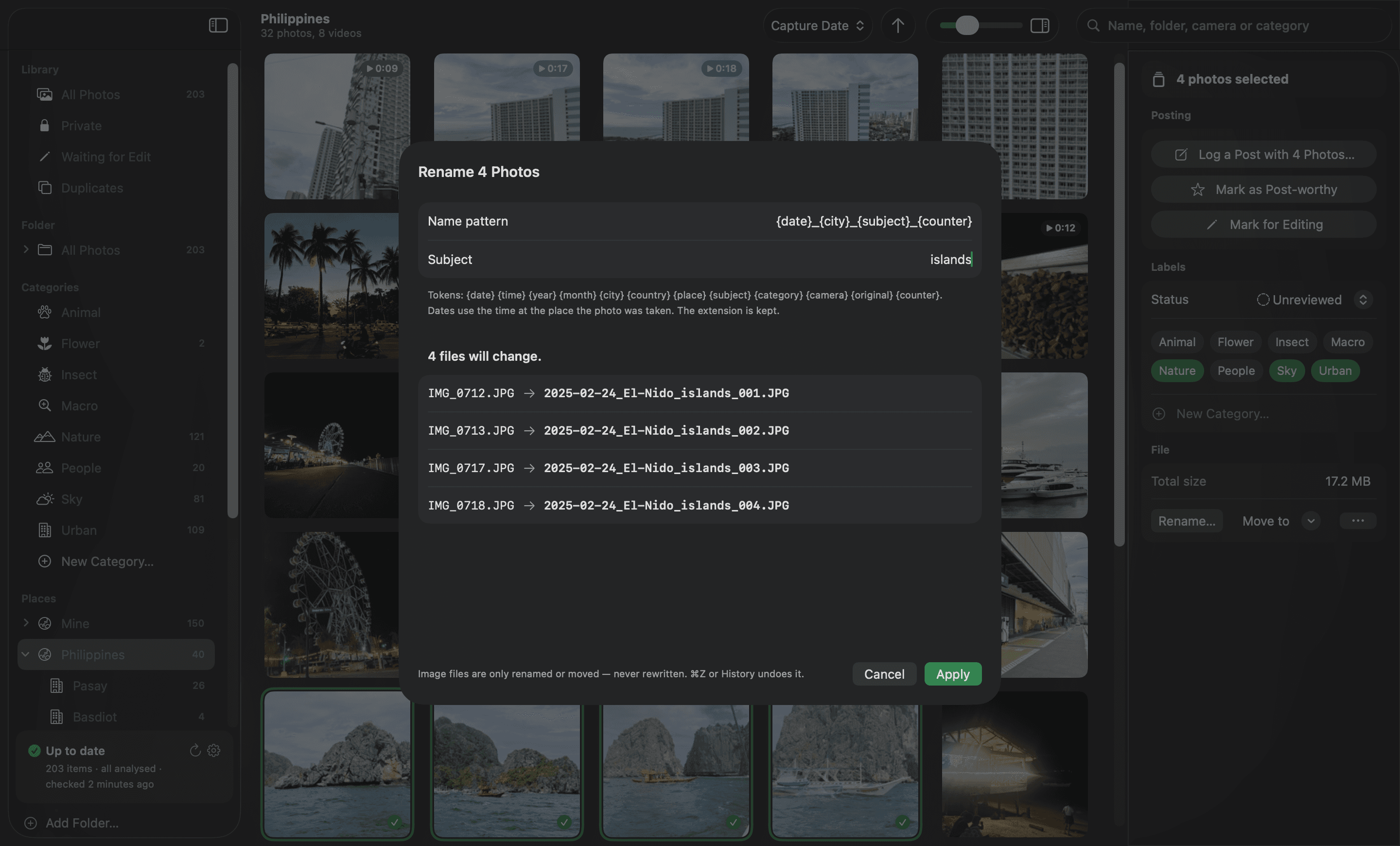
Rename in bulk, safely
From IMG_4821.CR3 to 2026-03-12_Dhaka_Macro_001.CR3.
Build names from date, time, place, category, camera and a counter. Preview every new name before anything changes, then apply — and undo if you change your mind.
Dates use the time zone the photo was taken in
RAW + JPEG pairs and sidecar files are renamed together
Real folders, one click
Sort into Year / Month, Country / City, Category or Camera folders.
Organize into Folders plans the moves, shows you the result, and only then touches your files. For one folder, right-click ▸ Copy to or Move to and pick it from the list — or Copy, then right-click a folder ▸ Paste Here, just like Finder. Drag photos onto a folder to move them (hold ⌥ to copy); drop them on another drive and they are copied, and every copy is checked. ⌘Z puts everything back. Copies leave the originals where they are. Pairs and sidecars always travel together.
Find duplicates, keep the best copy
Exact copies and look-alikes, side by side — you choose what stays.
Sortroom finds exact copies of photos and videos across your folders and drives, and — if you want — similar photos too: burst frames, re-exports, resized or edited versions, compared on your Mac. Each group suggests the copy to keep and says why (“Has the RAW file · Highest resolution”). Flip any copy between Keep and Remove with one click, then move the rest to the Trash or a review folder. Undo from History.
RAW + JPEG twins are one shot — never offered against each other, and they leave together
The copy you posted or labelled counts toward keeping it
Nothing is deleted; nothing leaves your Mac
Move to Trash, safely
Clear out the misses without leaving Sortroom.
Right-click a photo — or select a few and press ⌘⌫, like Finder — and confirm. They go to your Mac’s Trash, never deleted for good. Changed your mind? ⌘Z, History, or Put Back in Finder brings them home.
RAW + JPEG twins and sidecars go together, so nothing is left behind
Works on any drive or folder you added
Undo anything
Every rename and move can be reversed.
Nothing is left half-done, even if your Mac crashes mid-way. The History view lists what changed, and one click reverses it.
Never overwrites an existing file
Never deletes a photo permanently — photos you remove go to the Trash (duplicates also to a review folder), and you can put them back
Your Macs, in step.
iCloud sync
Label on one Mac, see it on the other — in seconds.
Turn on iCloud sync and your statuses, categories (with their smart rules), post log, places and place names stay the same on every Mac you use. Edits made offline sync when you’re back online, and the newest change always wins. It uses your own private iCloud storage, encrypted — Sortroom has no server and can’t see it. Your photos themselves never upload.
Off until you turn it on — Sortroom asks once
A new Mac gets everything back just by signing in to the same iCloud
In practiceMark a photo Posted at the office — it’s Posted at home before you get there.
Native and modern
Built for the latest macOS, with its Liquid Glass look, keyboard shortcuts and VoiceOver support.
Private by design
Your photos stay yours.
Your photos never leave your Mac — unless you choose to let Claude see small previews (max 512 px, no location).
No account, no Sortroom server, no tracking.
Files are never re-saved. Sortroom renames and moves only — after you approve — and never deletes permanently.
Everything is undoable, even after a crash.
iCloud sync is opt-in and stays in your private, encrypted iCloud storage.
Sortroom recognises flowers, skies, animals and people — on your Mac.
Photo recognition runs on your Mac and suggests categories. Nothing is uploaded. It works quietly in the background, new photos are sorted in as you add them (turn it off in Settings), and a photo you move in Finder keeps its categories.
Private means private
Mark a photo or a whole folder Private — AI never sees it.
Private photos and folders are hidden from Claude completely: no names, no details, no previews. Photos with people are kept away from Claude by default too, detected on your Mac.
In practiceFamily photos live in the same drive as your portfolio — and never leave your Mac.
Sortroom vs. import-based photo libraries
Topic
Sortroom
Import-based libraries
Start browsing
Right away, where your files are
After importing into the app’s library
Your folders
Stay the truth — real folders on disk
Often replaced by the app’s own library
Portable SSDs
First-class: plug in and go
Usually need importing or relinking
Image quality
Never re-saved
Depends on the app
Posting pipeline
Built in (post-worthy → posted)
Rarely
AI
On your Mac by default; Claude optional, with your approval
Varies; often cloud
Pricing
Free to start. Pro when you’re ready.
Free
$0
Browse your folders and drives, view photos and videos, see the labels you already have.
Pro Lifetime
Launch price
$39.99once
Buy once, no subscription. Everything in Pro and all 1.x updates. This price runs until December 2, 2026, then $49.99. A future major version may be an optional upgrade.
Pro Yearly
2 weeks free
$19.99/ year
Everything in Pro — just $1.67 a month.
Pro Monthly
$6.99/ month
Everything in Pro.
Pro unlocks labels and statuses, your own places, the post log, rename, move and organize, duplicate clean-up, working with Claude and iCloud sync.
The 2 weeks free are on Yearly only. Subscriptions renew automatically until you cancel in your Apple Account settings. Your labels are never locked — without Pro you still see everything you made. Prices in US dollars; they vary by country.
Roadmap
Coming soon.
Planned, not in version 1.0 yet.
Organize presetsSave a rule once (“Camera dump → Year / Month”) and reuse it.
Already-posted look-alikes“You posted something very similar on 3 Jan.”
Calendar view + Calendar syncSee your planned posts on a calendar and in Apple Calendar, with a “Posted?” reminder.
Instagram history importBack-fill years of “Posted” from your Instagram export.
Google Drive syncKeep your Macs in step with Google Drive.
Save info inside photos (opt-in)Let other apps see your categories and places.
Search by words, on your Mac“Red umbrella in the rain” — found without uploading anything.
Find similarPick a photo, see the ones that look like it.
More AI appsUse Sortroom from AI apps besides Claude.
Questions.
Does Sortroom copy my photos?
No. It works on your folders and drives exactly where they are.
Will it change my photo files?
Never their content. It only renames or moves them — after you approve — and you can undo.
What happens if I uninstall it?
Your folders stay exactly as they are. Sortroom never locks your photos into a library.
Does my data go to the cloud?
Only if you turn on iCloud sync (your own private iCloud) or let Claude see small previews. Both are off until you choose.
Can I use it with more than one Mac?
Yes — drives carry their labels, and iCloud sync keeps your Macs in step.
How much does it cost?
Browsing, viewing your photos and seeing your labels are free. Sortroom Pro unlocks everything else — buy once with Lifetime (no subscription), or yearly with 2 weeks free, or monthly.
What happens if I stop paying?
Your photos, folders and labels stay exactly as they are and you can still see them; adding new labels, organizing and the other Pro tools pause until you subscribe again.
Do my photos need GPS for places?
Yes — places use the location stored in the photo. Most phone photos have it; for camera files without GPS, automatic and named places simply stay empty.
Which cameras does it support?
JPEG, HEIC, PNG, TIFF, WebP and RAW from Canon, Nikon, Sony, Fujifilm, Olympus, Panasonic and DNG.
Does it work with AI apps other than Claude?
Sortroom connects to Claude Desktop today. It uses MCP, an open standard for AI apps, and support for more apps is coming once we’ve tested them.